
Integrations

HubSpot map view and route planning: the HubSpot map integration for field reps

Lead Mapper is the HubSpot map view for the HubSpot plan you already run: every company, contact and deal with an address on one map, each rep's route planned through them, territories drawn by owner and every visit a rep marks done logged back to the HubSpot record as an activity. Start the 7-day free trial with no credit card; the first sync takes up to 30 minutes.

HubSpot map view beta: Enterprise only in HubSpot, any plan in Lead Mapper

The HubSpot map view is listed under Enterprise subscriptions only. The account must be "enrolled in the Flexible CRM Views beta", and the map "displays up to 500 records for a specific area" (HubSpot Knowledge Base, last updated 28 September 2026, read 16 October 2026).

A 40-rep team on Sales Hub Professional that upgrades to Sales Hub Enterprise for the map pays $150 instead of $90 per seat per month on annual billing: $28,800 more a year (HubSpot Sales Hub pricing guide, updated 9 September 2026). Lead Mapper puts companies, contacts and deals from any HubSpot plan on one map, with deal name, amount and stage on the pin. Filter and color by any HubSpot property, custom ones included, with every record in view.

HubSpot route planning: from a filtered list to the rep's day

HubSpot route planning runs in Lead Mapper: HubSpot's map article mentions no routes and no directions (read 16 October 2026). The rep filters the map, picks the stops and gets them in drive order. On iPhone or Android the driving mode opens each stop in Google or Apple Maps, the rep marks it done or skipped, and the visit lands on the HubSpot record as an activity.

A manager with 40 reps saves one filter per rep (owner is the rep, deal stage one of the two before closed won, last activity older than 30 days) and lets Lead Mapper route it every Monday.

HubSpot territory mapping: the owner field, drawn on the map

For HubSpot territory mapping, draw territories by hand or as drive-time areas from 1 to 60 minutes and assign each to a rep. Lead Mapper colors every HubSpot record by its owner, so a company inside one rep's territory that HubSpot assigns to another rep stands out before anyone drives there. Start the 7-day free trial.

Lead Mapper does the same CRM mapping for Salesforce, Pipedrive, Zoho CRM and seven more CRMs, every visit back on the record.

Connect HubSpot to Lead Mapper in five steps

Step 1: Create a Lead Mapper Account

Your Lead Mapper account opens the 7-day free trial, no credit card.

Go to Lead Mapper's website, fill in your name, email address, and password, then click the "Sign Up" button to create your account.
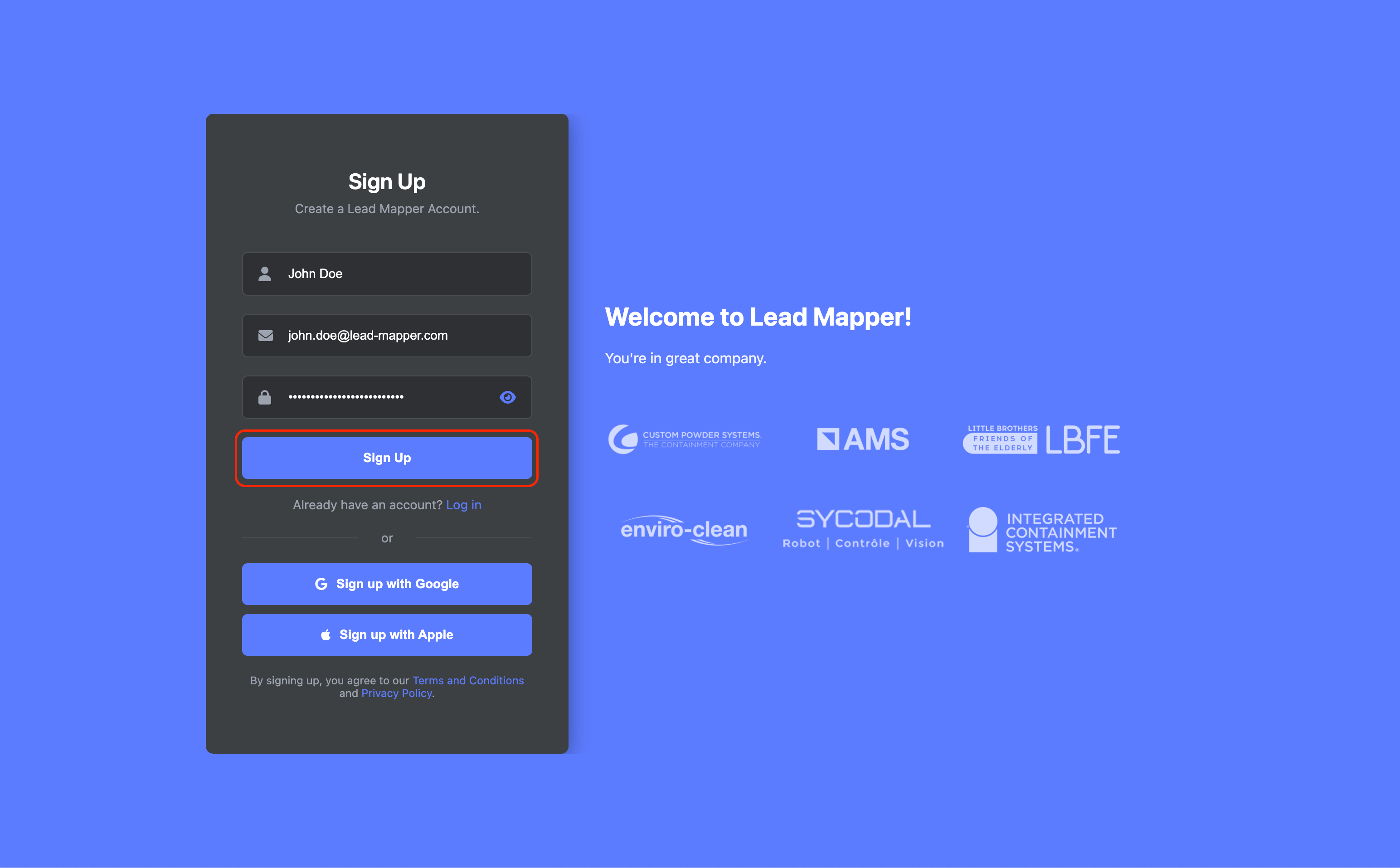
Step 1: Lead Mapper sign-up form


Step 2: Connecting Lead Mapper with HubSpot

After sign-up Lead Mapper opens the "Connect Your CRM" screen with a tile for HubSpot.

Click on the "Connect" option for HubSpot.
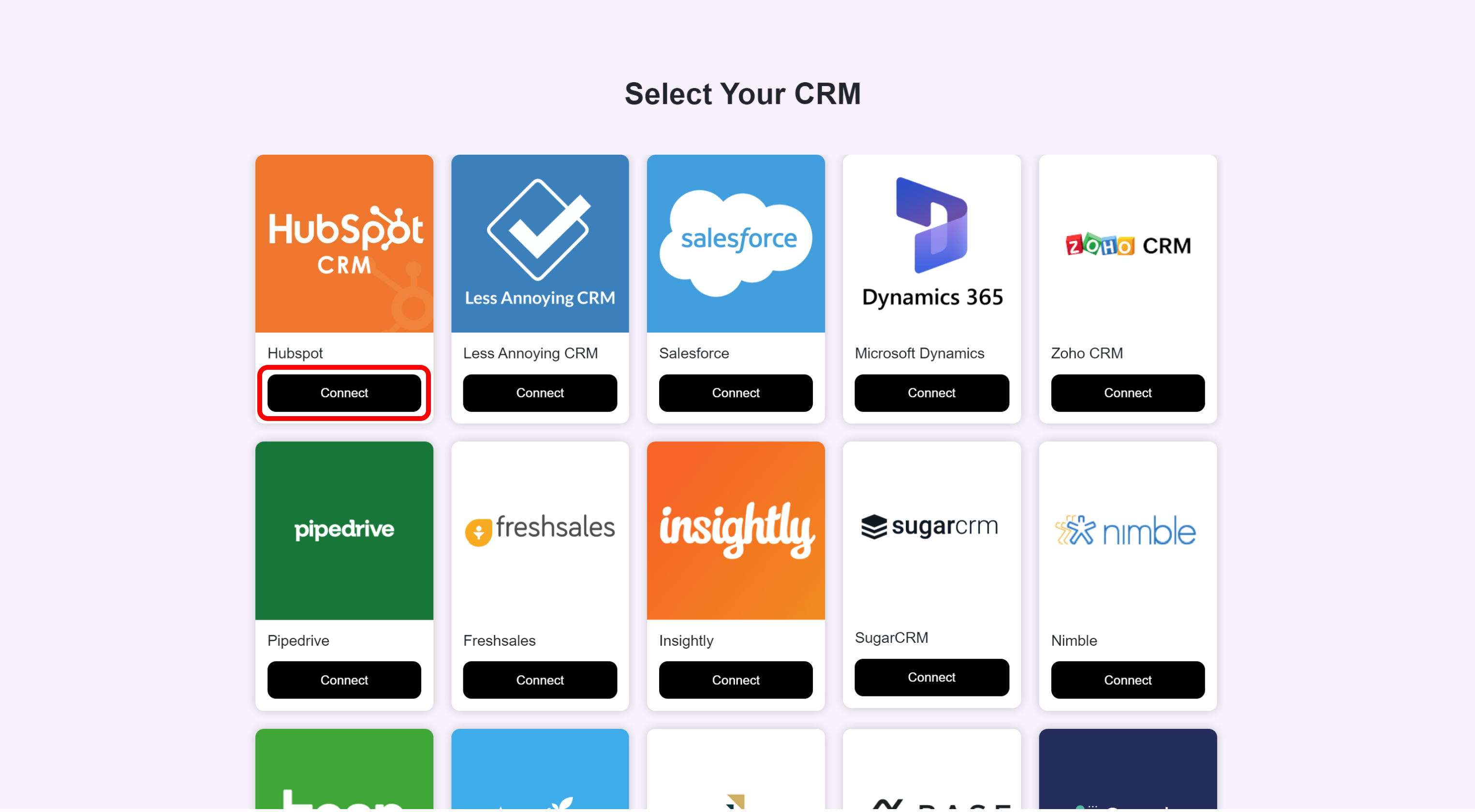
Step 2: Connect HubSpot from the Connect Your CRM screen in Lead Mapper

If you're not already signed in to your HubSpot account, you'll be prompted to do so.
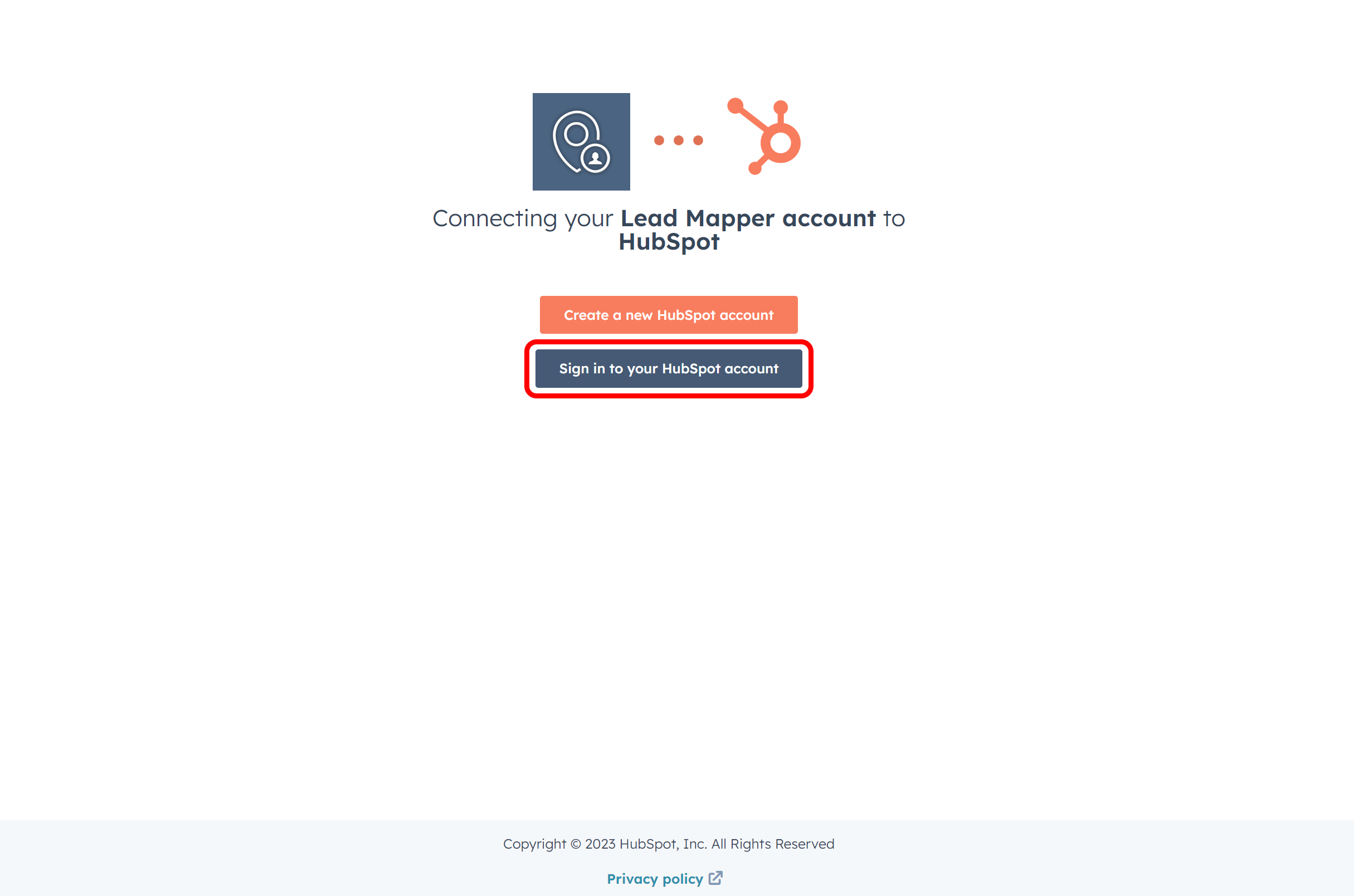
Step 2: sign in to HubSpot

Once you are signed in, select the specific HubSpot account you want to connect to Lead Mapper.
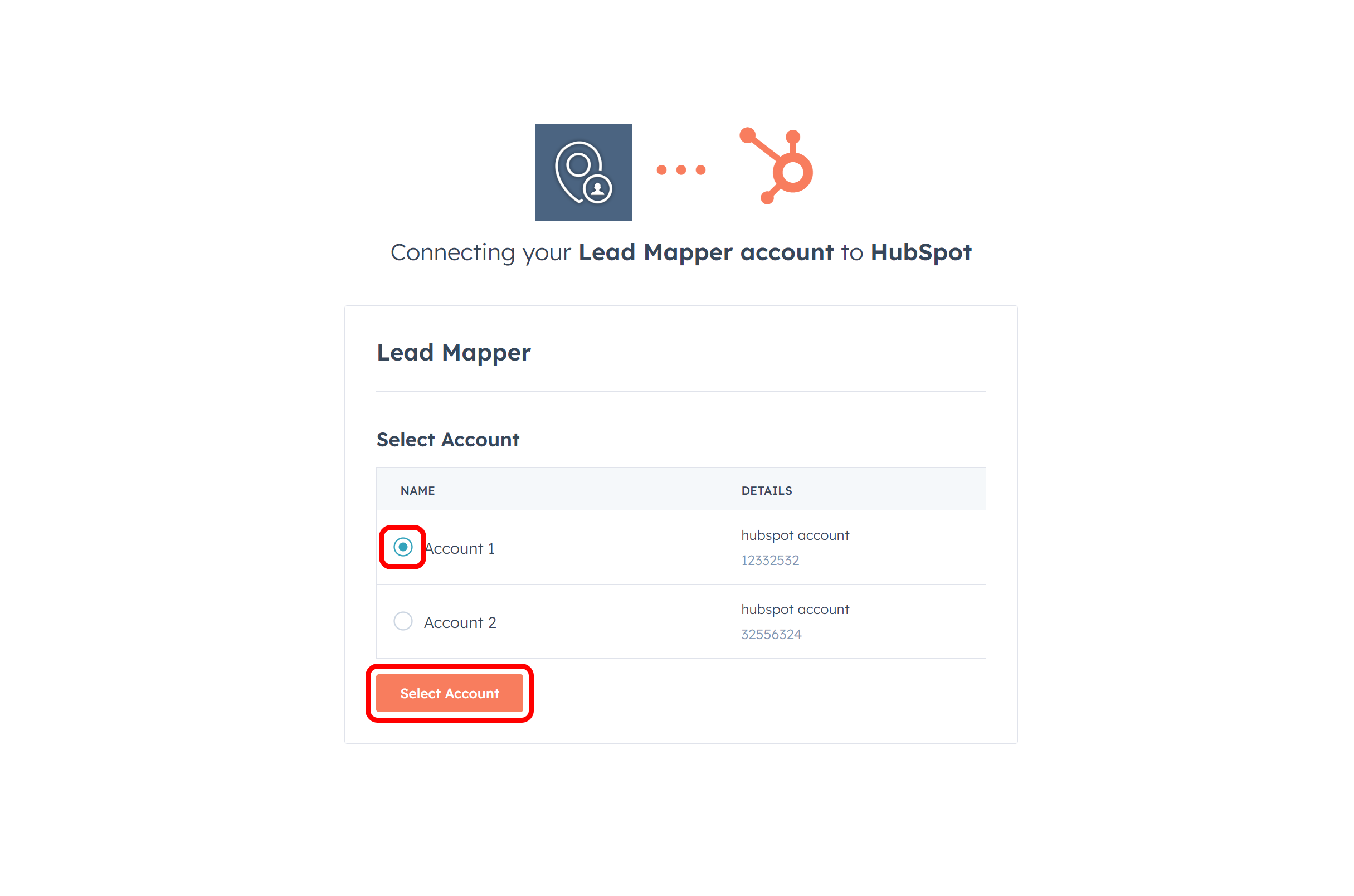
Step 2: choose the HubSpot account to connect to Lead Mapper


Click the "Connect App" button to finalize the connection.
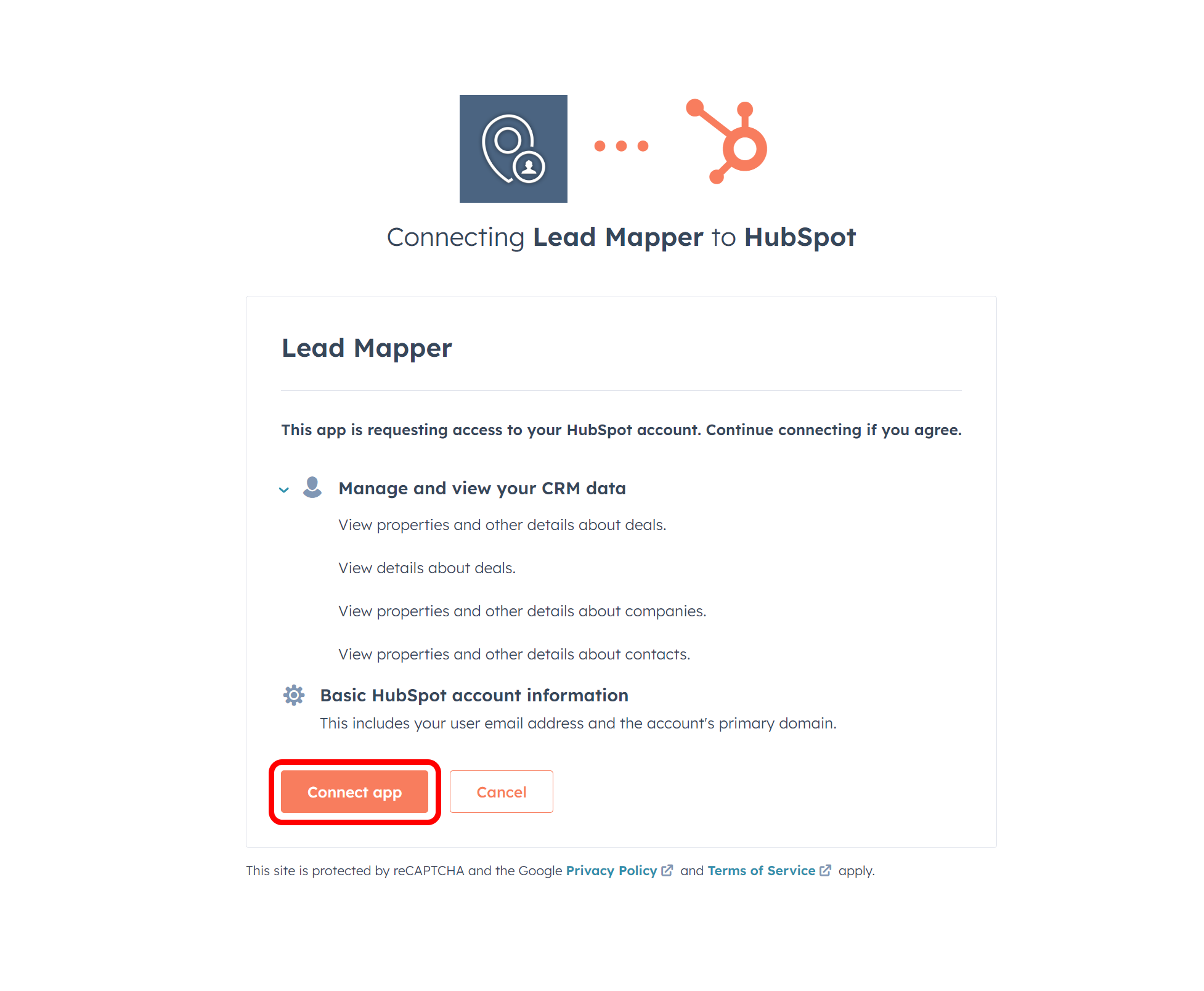
Step 2: Connect App in HubSpot

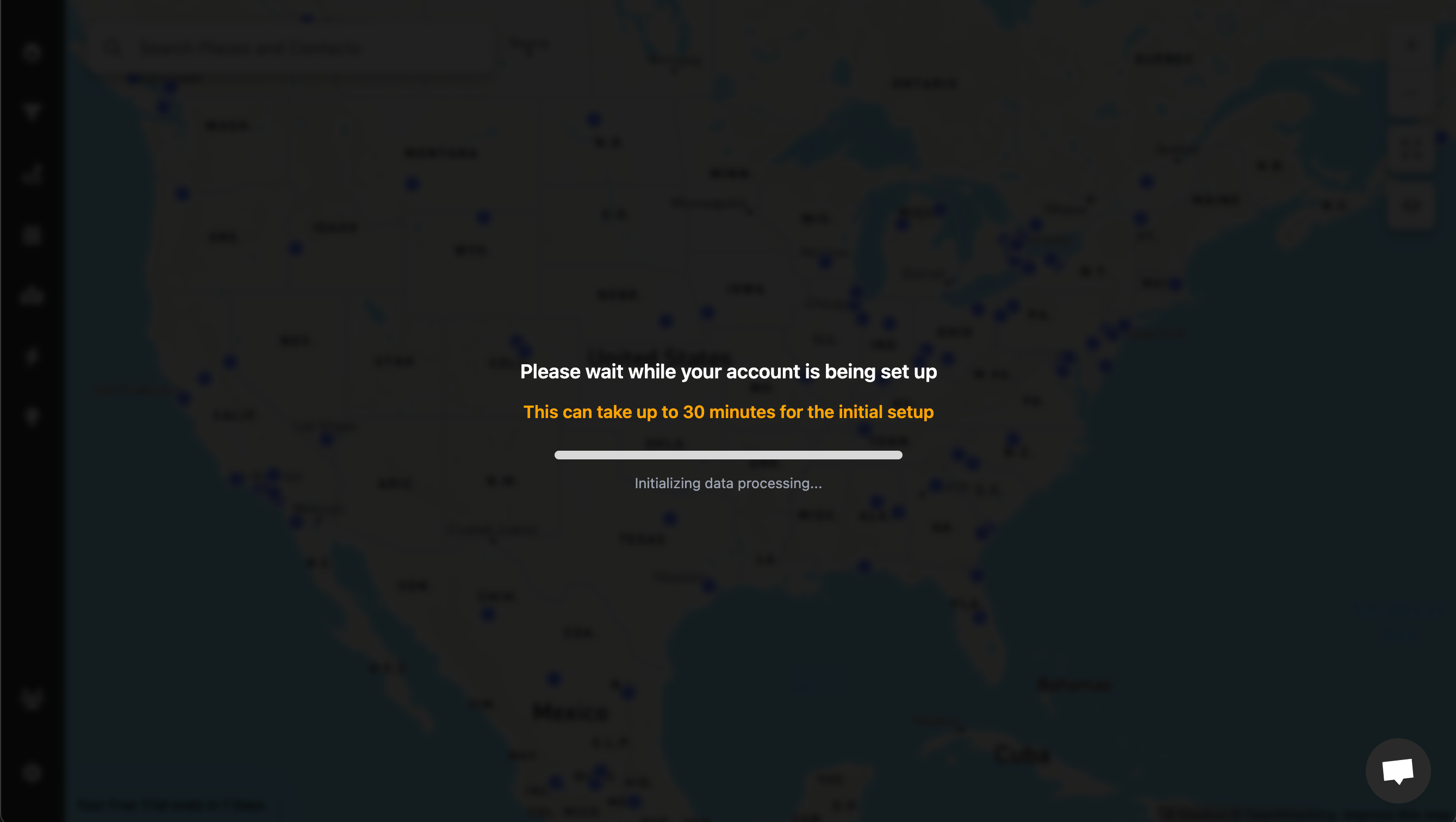
Step 3: Wait for your account to be set up

Lead Mapper now loads your HubSpot companies, contacts and deals and keeps them in sync with HubSpot in real time. The first sync takes up to 30 minutes.

Step 3: Lead Mapper setting up the first HubSpot sync, up to 30 minutes

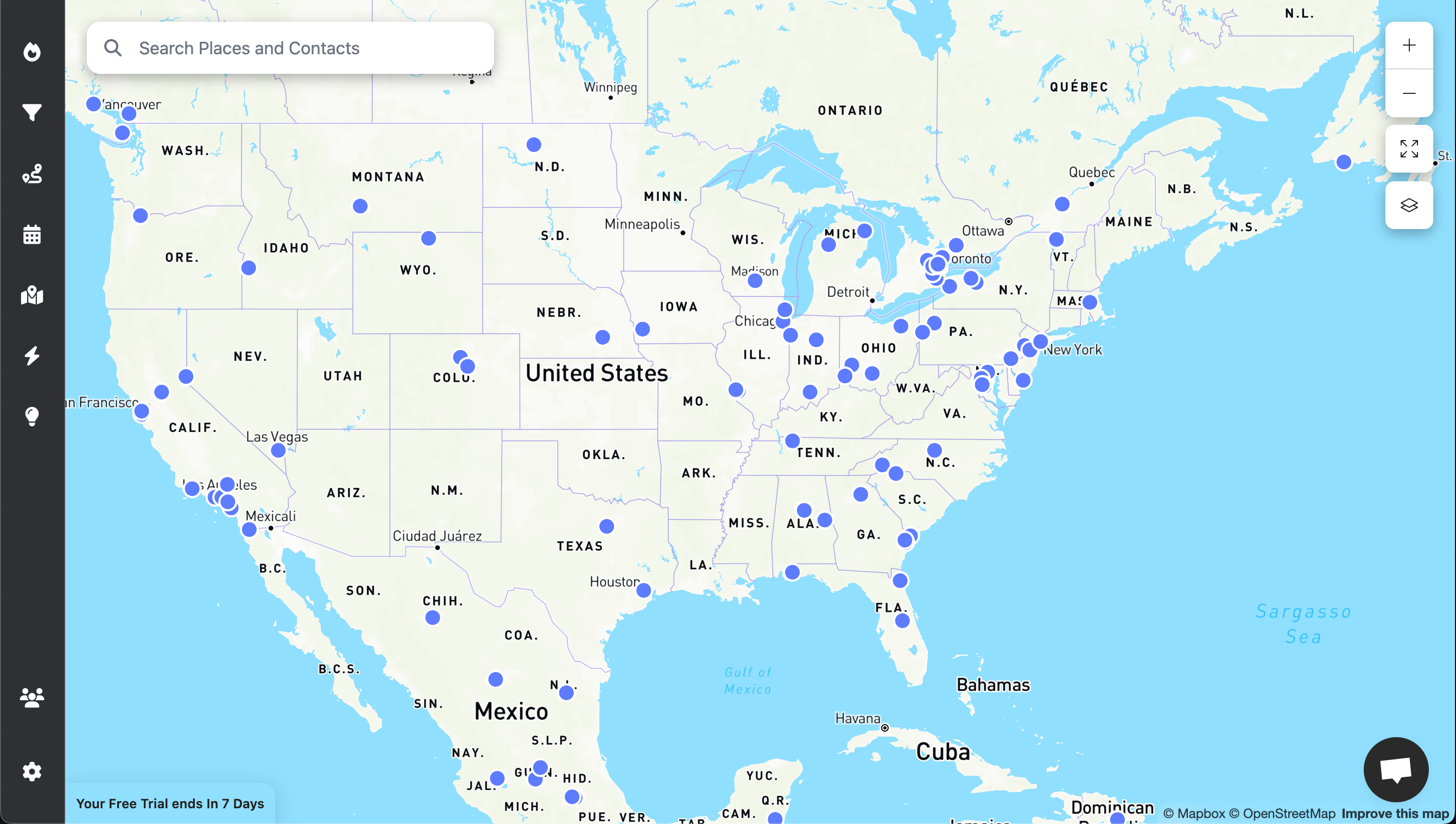
As soon as the data is loaded, every HubSpot record with an address is on the map. Part of your team on Salesforce? Salesforce mapping in Lead Mapper puts Contacts, Leads and Accounts on the same map, with a 7-day trial without a card.

HubSpot records on the Lead Mapper map view

Step 4 (Optional): Install the Mobile App

To access Lead Mapper on the go, install it from the App Store or Google Play Store:

Step 5 (Optional): Install the Chrome Extension

The Chrome extension puts Lead Mapper inside HubSpot.

Open Lead Mapper in the Chrome Web Store and click "Add to Chrome" to install the extension.
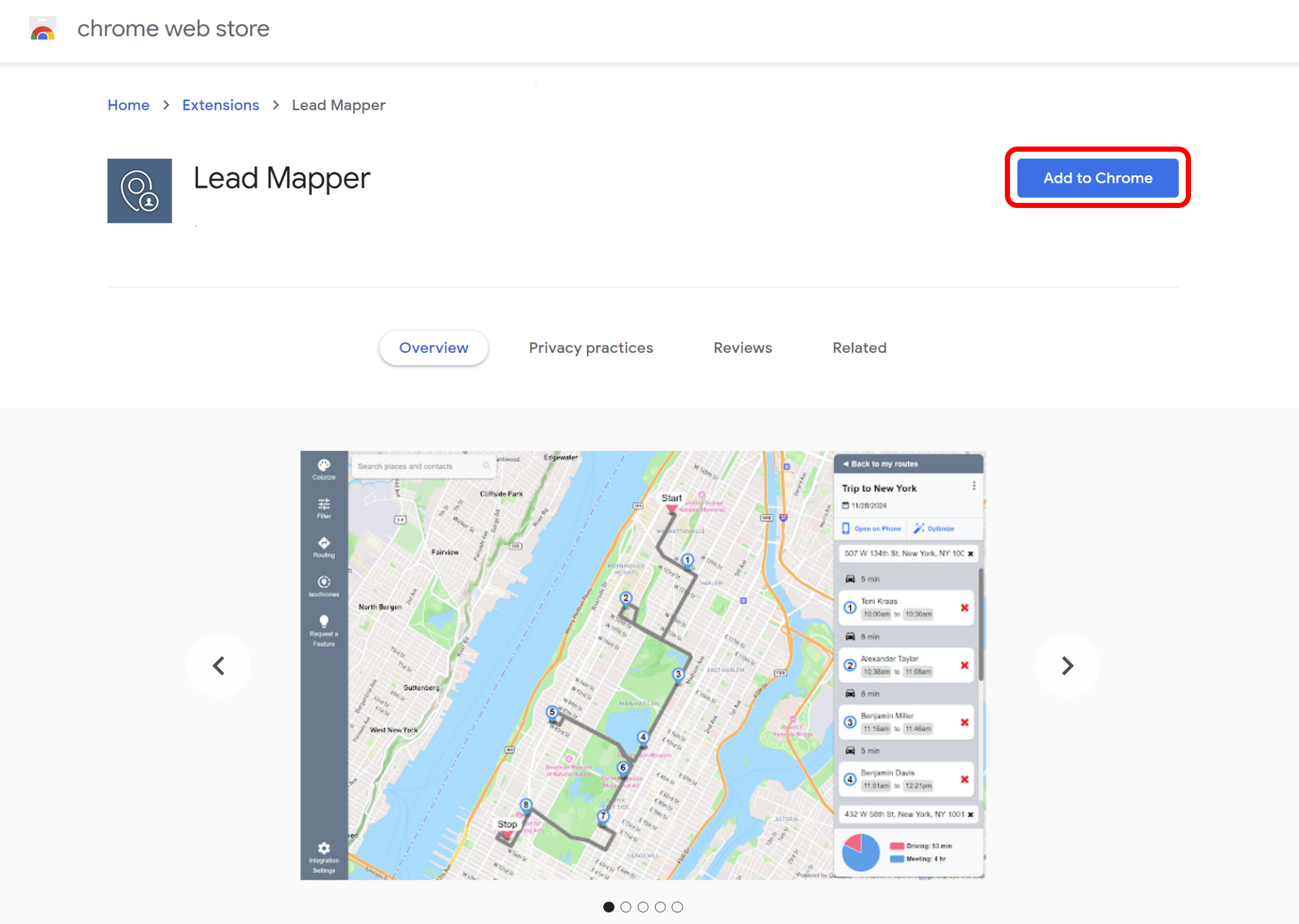
Step 5: Lead Mapper Chrome extension in the Chrome Web Store

Now, go back to HubSpot's website and sign in. You'll notice a new section called "Lead Mapper." Click on it to open Lead Mapper inside HubSpot.

FAQ

Questions, answered.

HubSpot's own map view needs an Enterprise subscription and the Flexible CRM Views beta and shows up to 500 records per area (HubSpot Knowledge Base, read 16 October 2026); Lead Mapper adds a map view to the HubSpot plan you already run.

Lead Mapper plans the routes for HubSpot: filter your records, pick the stops and get them in drive order on the phone, each visit logged back to HubSpot.

Lead Mapper maps HubSpot companies, contacts and deals, each deal at the address of its company or contact, with its pipeline stage.

Lead Mapper's first HubSpot sync takes up to 30 minutes, and the 7-day free trial starts without a credit card.

Get your team on the map.

HubSpot connected to Lead Mapper. Free to try. No card required.