


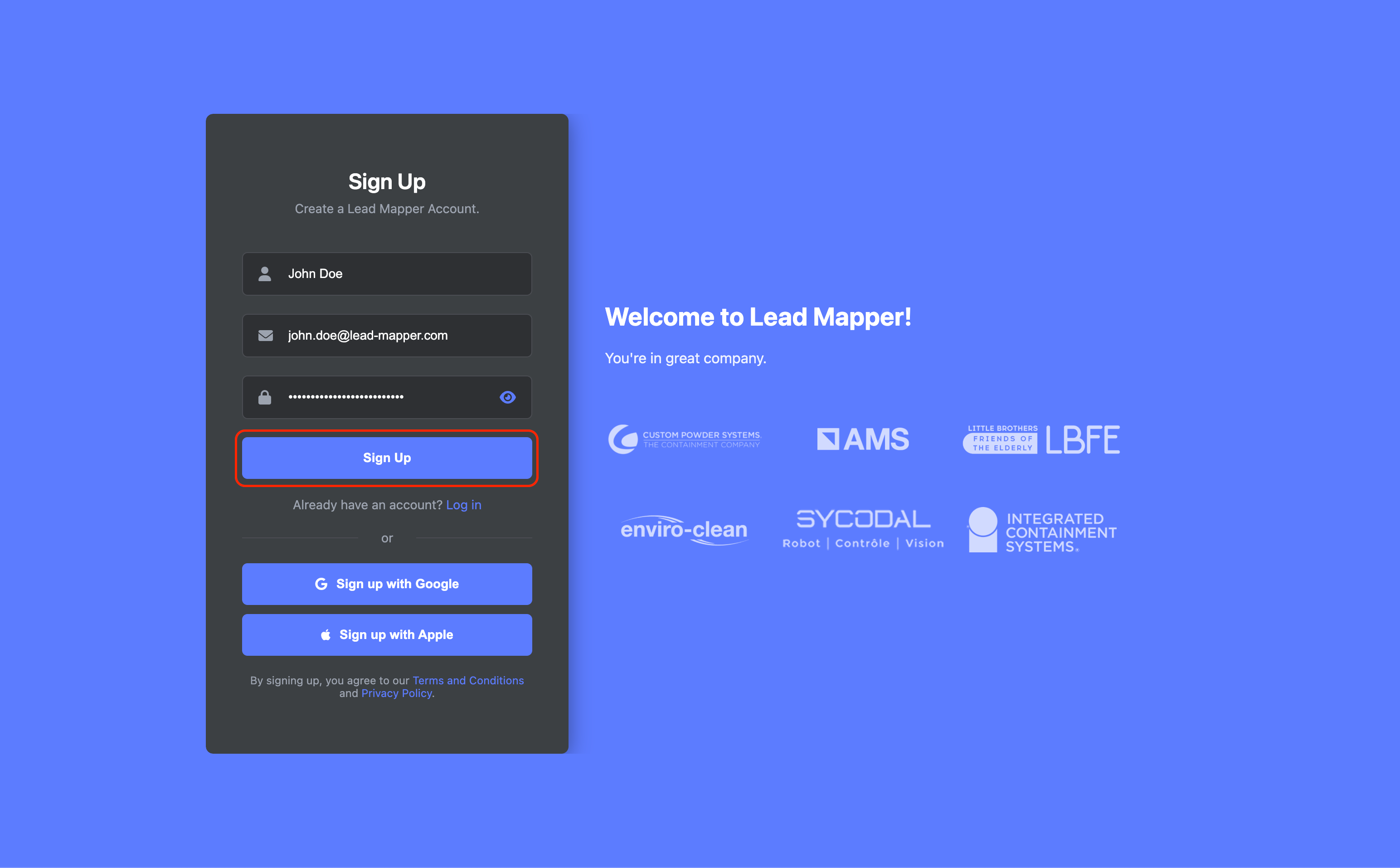
Step 1: Create a Lead Mapper Account
Start your journey by setting up a Lead Mapper account. Follow these simple steps:
Go to Lead Mapper's website fill in your name, email address, and password, then click the "Sign Up" button to create your account.
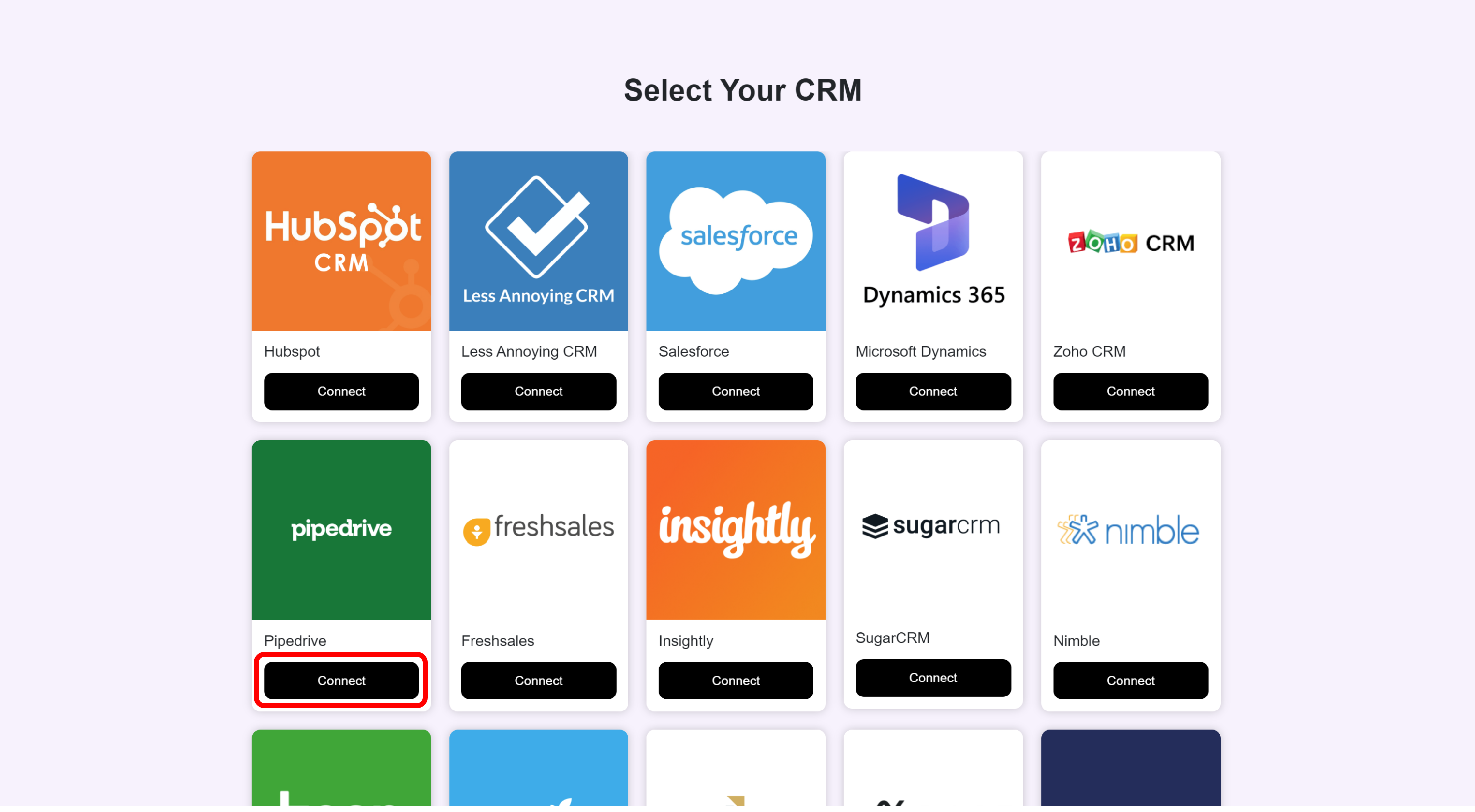
Step 2: Connecting Lead Mapper with Pipedrive
Now that you have a Lead Mapper account, let's establish a connection with Pipedrive. Here's how:
Click on the "Connect" option for Pipedrive.
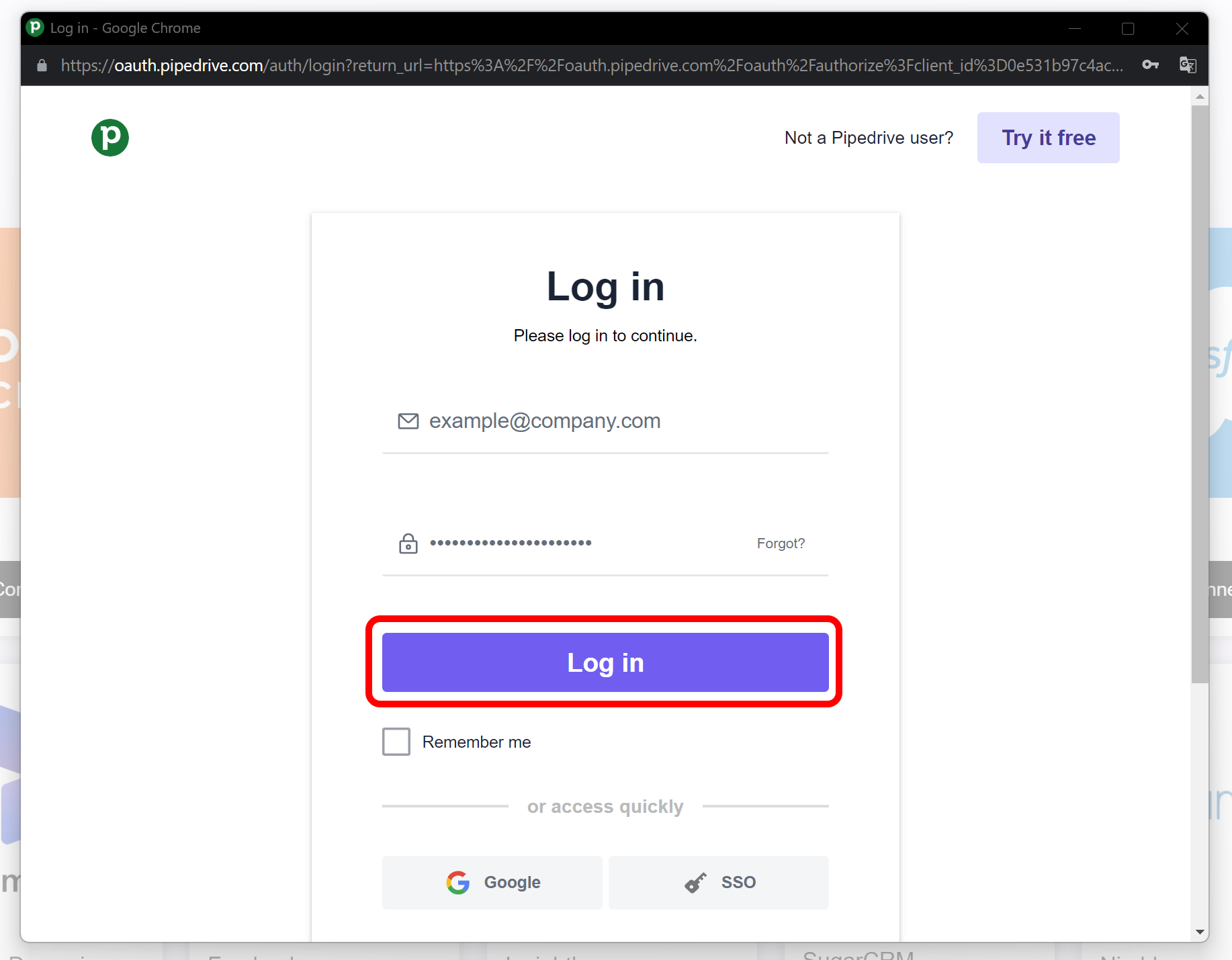
If you're not already signed in to your Pipedrive account, you'll be prompted to do so.
Click the "Allow and Install" button to finalize the connection.
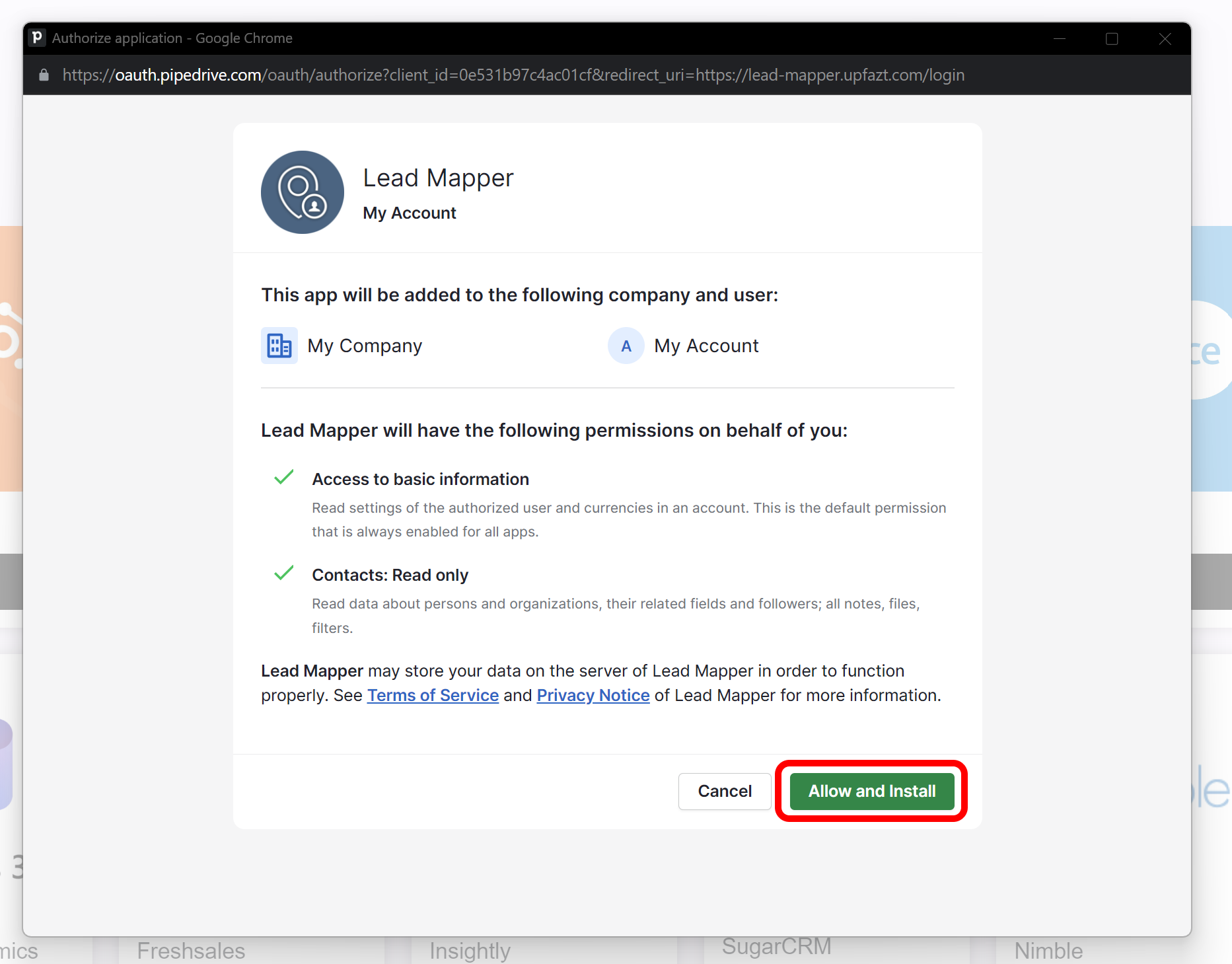
Step 3: Wait for your account to be set up
Once you’ve successfully connected your account, Lead Mapper will begin setting up your data and establishing a real-time synchronization channel with your CRM. This data process usually takes between 5 and 30 minutes.
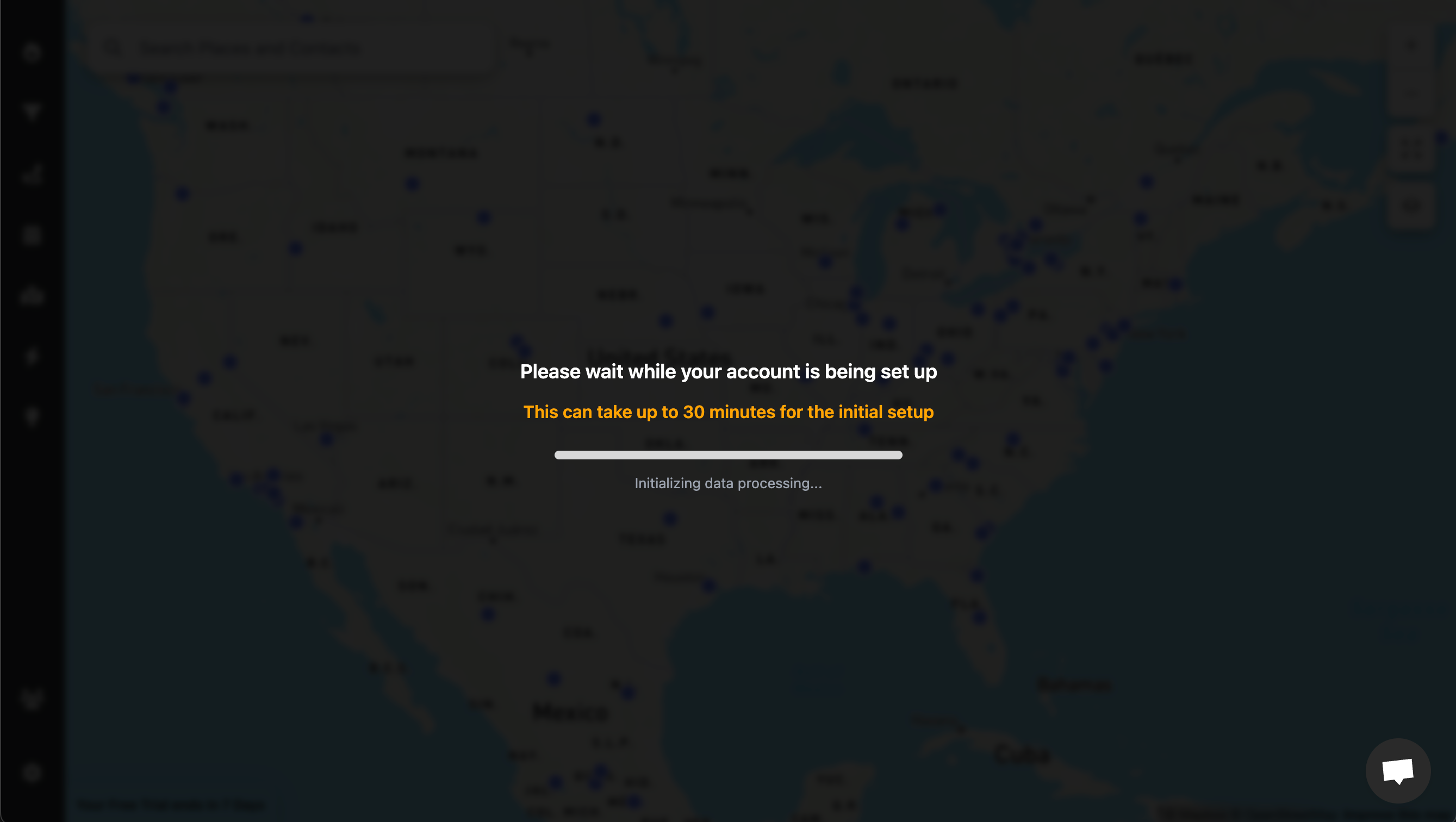
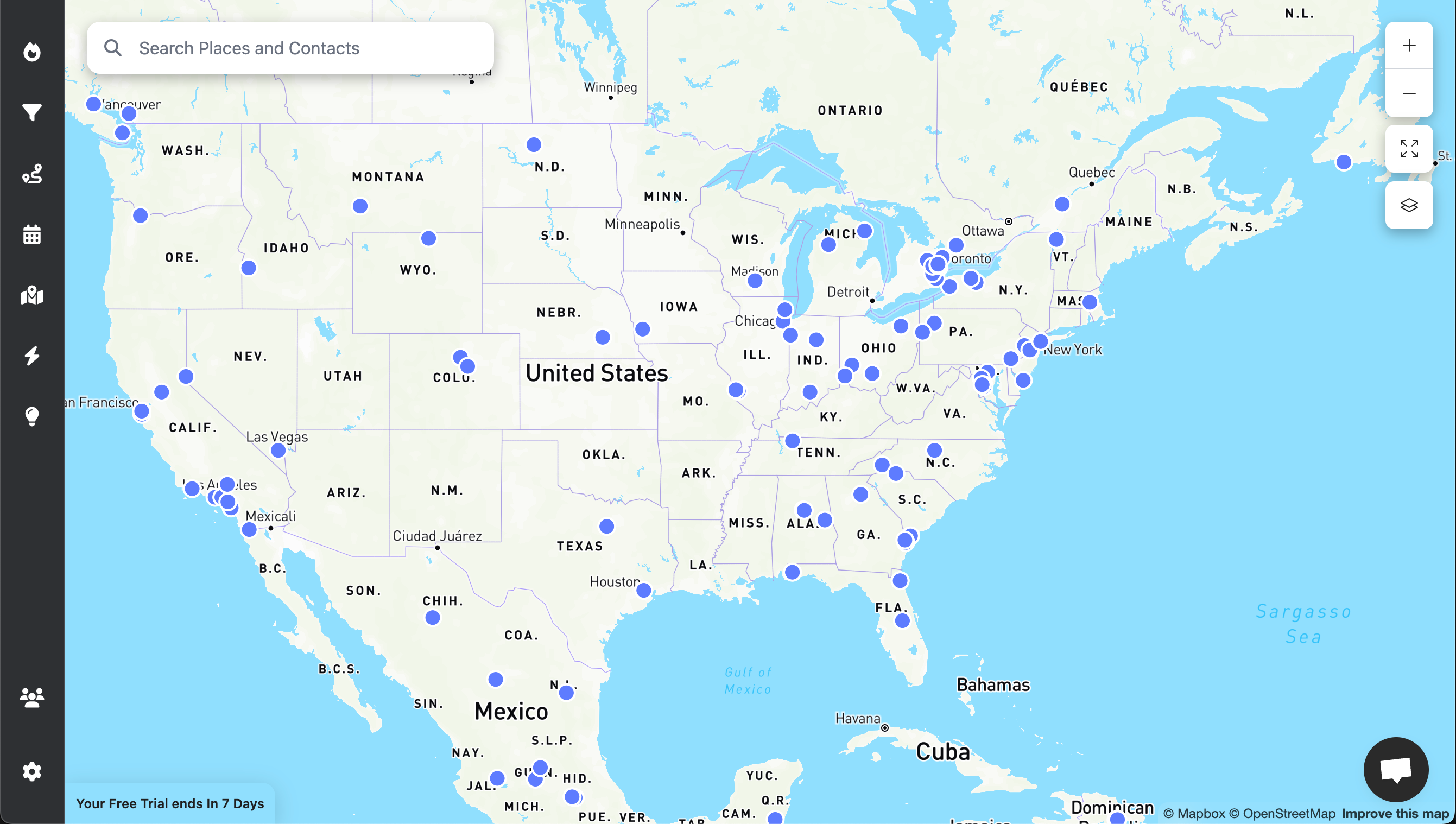
As soon as your data is loaded, you're ready to harness the power of Lead Mapper. Enjoy the experience!
The Pipedrive connector sits on the same single Lead Mapper plan as every other connector, with a one seat minimum. That is not the default in this category: SPOTIO sets "Minimum team size: 5+ field sales professionals" (spotio.com/pricing, read 19 July 2026), which our SPOTIO pricing analysis sets out in full. If part of your team works in HubSpot instead, check the map side before you plan the switch, because the map app HubSpot acquired states "For now we are not taking on any new customers" (geomapper.io, read 2 August 2026); the options are on our GeoMapper alternative page. Teams that run Salesforce get the same single plan: Salesforce mapping at $27 per user per month, Contacts, Leads and Accounts on the map, and an app for every rep.
Which Pipedrive records matter most depends on the trade. An industrial supply distributor keys the map on repeat order accounts and reorder intervals; a flooring dealer keys it on open quotes and booked measure appointments. The connector loads both the same way and the difference is in what you pin, not in the setup above.
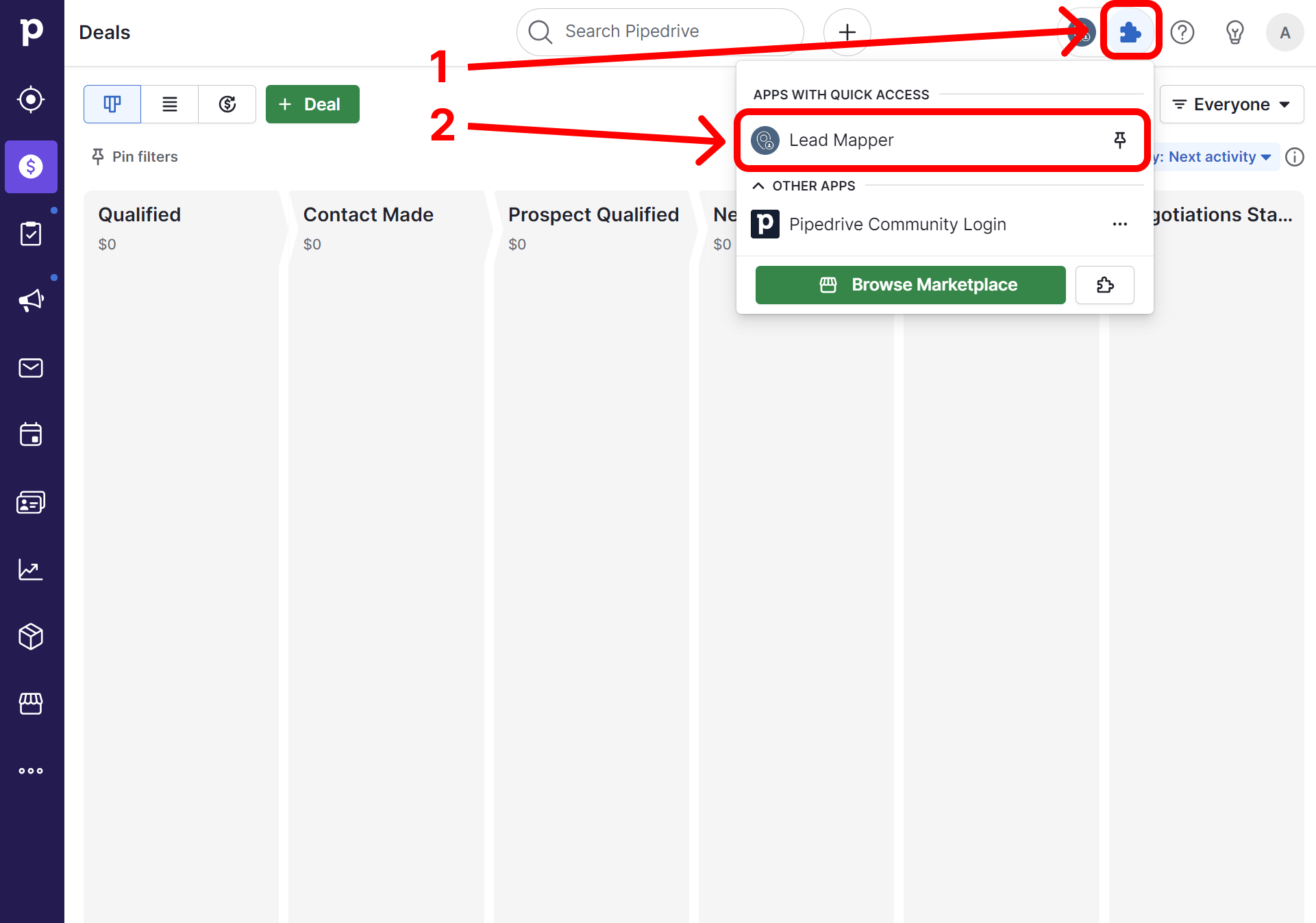
Step 4 (Optional): Access Lead Mapper inside Pipedrive
If you want the convenience of accessing Lead Mapper within your CRM, Open Lead Mapper by clicking on the puzzle icon in the header menu, then select "Lead Mapper"
Step 5 (Optional): Install the Mobile App
To access Lead Mapper on the go, install it from the App Store or Google Play Store: